When you need to launch an application each time you print, or create a file, you would use either the On Success or the End of Job run command. The difference between the two is that the On Success run command only runs when the file is successfully created. The End of Job run command will always run, even if the file did not get created.
Sample Migration For Run Commands
For users migrating from the older-style commands from version 11 or previous, the following shows the changes needed to update your commands for version 12 and later. To see how to add a new command, go to the step-by-step instructions below.
Single Argument Command
This is a sample run at end command in TIFF Image Printer 11.0 using a fictional utility, ArchiveReports.exe. It is not an included utility. In this sample we are running this at End of Job and are passing a argument to the utility.
TIFF Image Printer 11.0 End of job settings in Printer Preferences:

TIFF Image Printer Script File settings for Run at End :
[Run] RunAtEnd enable=1 RunAtEnd command=C:Tools\ArchiveReports.exe RunAtEnd parameters=Mode=New RunAtEnd directory= RunAtEnd window=Normal RunAtEnd window active=1 RunAtEnd wait=0 RunAtEnd prompt=Do you want to continue? |
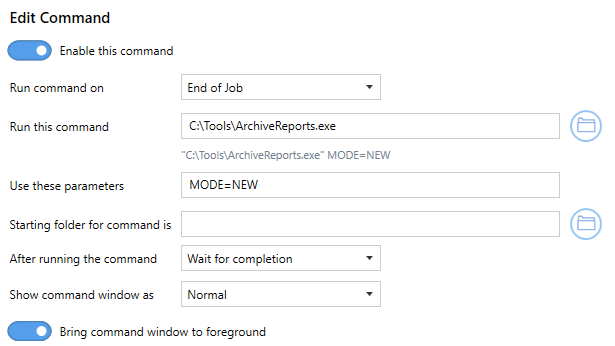
In TIFF Image Printer 12, we will choose the End of Job run command to call the fictional ArchiveReports.exe utility with the argument "Mode=New", show the window and wait for the program to finish. If we only wanted the command to run when the file was created, we would use the On Success job instead and turn off the Append file list to command parameters feature so we are not passing in the text file of created files as the last argument. All other command and arguments passed would be the same.
Multiple Custom Arguments Command
This is a sample run at end command in TIFF Image Printer 11.0 using the fictional tool, ArchiveReports.exe. It is not an included utility. This utility takes one custom argument and the JobID of the print job supplied by a printer macro. We also want to show the window and wait for the program to finish.
TIFF Image Printer 11.0 End of job settings in Printer Preferences:

TIFF Image Printer Script File settings for Run at End :
[Run] RunAtEnd enable=1 RunAtEnd command=C:Tools\ArchiveReports.exe RunAtEnd parameters=Mode=NEW $(JobID) RunAtEnd directory= RunAtEnd window=Normal RunAtEnd window active=1 RunAtEnd wait=0 RunAtEnd prompt=Do you want to continue? |
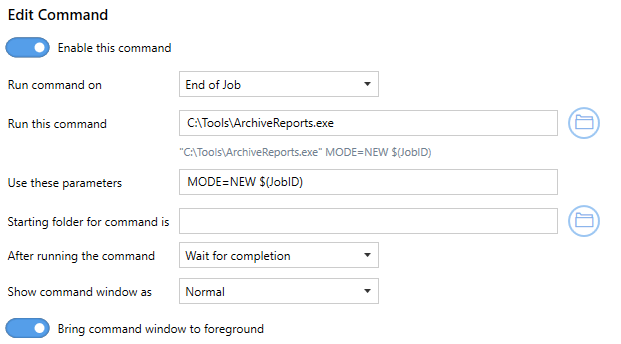
In TIFF Image Printer 12, here again we chose the End of Job run command to launch the fictional ArchiverRports.exe utility with the two arguments passed. We could also have used an On Success run command with the Append file list to command parameters feature turned off.
Step by Step Instructions
The steps below demonstrate how to add a new End of Job Run Command to call a fictional utility, ArchiveReports.exe. This is not an included utility. It takes as an argument the Job ID supplied by the printer using the printer macro, $(JobID).
1.Select "Edit & Create Profiles" to open Profile Manager.
2.Select "Add a profile" to create a personal profile, or create a copy of one of our system profiles.
3.Name the profile, add a description, and click Save.
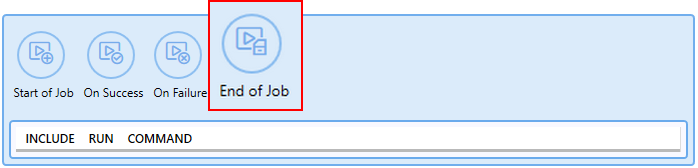
4.On the Run Commands tab, click the End of Job button to add an End of Job command.
5.The command will be added already enabled and the details expanded.
a.Beside Run this command, enter the full path and file name of application you want to start. Here we are using C:\Tools\ArchiveReports.exe.
b.In the Use these parameters field, add any parameters needed by the command being run. For our fictional tool, we need to pass the Job ID from the printer. We do this using the printer macro $(JobID). The macro will be replaced with the Job Id value from the printer when the command is runs.
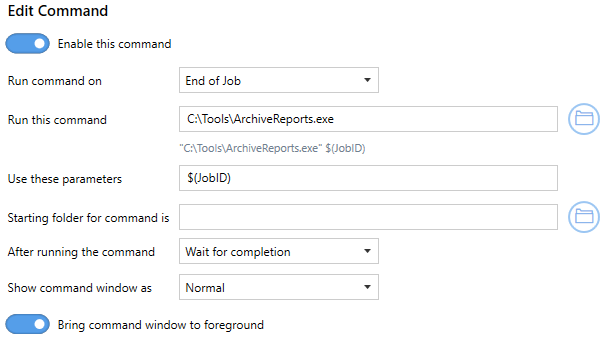
6.Click Save-Back, and close Profile Manager.
If you choose to enable run commands, you may also want to disable prompting by the Save As dialog each time you print.
i.To turn off prompting by the Save As dialog, disable Prompt for the output location and base file name.

If you plan to use these settings regularly, you may wish to make this personal profile the default profile used by TIFF Image Printer.
i.Select the printer you wish to edit and use the Profile drop box to select your desired default profile.
ii.Select "Manage Printers" to open Printer Management.
iii.Select the Save icon to save changes.
iv.Select the Home icon to return to the Dashboard.
7.Close the Dashboard. Now when you print your document to TIFF Image Printer, if the job succeeds, the application, in this case our fictional utility ArchiveReports.exe, is launched and the printer macro $(JobID) passed to the program.